'%3e%3c!--%20mat:%20red%20chevron%20trailing%20at%20the%20rope%20angle,%20cream%20top%20edge%20--%3e%3cpath%20d='M10%20392%20L181%20358%20Q187%20356.6%20193%20358%20L364%20392%20L364%20520%20L10%20520%20Z'%20fill='%23C5392C'/%3e%3cpath%20d='M10%20392%20L181%20358%20Q187%20356.6%20193%20358%20L364%20392'%20fill='none'%20stroke='%23EDECE8'%20stroke-width='14'/%3e%3c/g%3e%3cpath%20d='M178%206%20Q187%201%20196%206%20L364%2084%20Q371%2088%20371%2097%20L371%20396%20Q371%20417%20350%20428%20L195%20503%20Q187%20507%20179%20503%20L24%20428%20Q3%20417%203%20396%20L3%2097%20Q3%2088%2010%2084%20Z'%20fill='none'%20stroke='%23EDECE8'%20stroke-width='14'%20stroke-linejoin='round'/%3e%3cg%20fill='%23C5392C'%3e%3crect%20x='129'%20y='103'%20width='116'%20height='62'%20rx='20'/%3e%3crect%20x='129'%20y='187'%20width='116'%20height='62'%20rx='20'/%3e%3crect%20x='129'%20y='271'%20width='116'%20height='62'%20rx='20'/%3e%3c/g%3e%3c/svg%3e) Turnbuckle
TurnbuckleAdding an event sponsor
Create a sponsor and tier, then attach the sponsorship to an event.
An event sponsorship connects three things: the business supporting your promotion, the tier they purchased, and the event receiving that support. Set up the sponsor and tier once, then assign them from the event.
Review active sponsorships
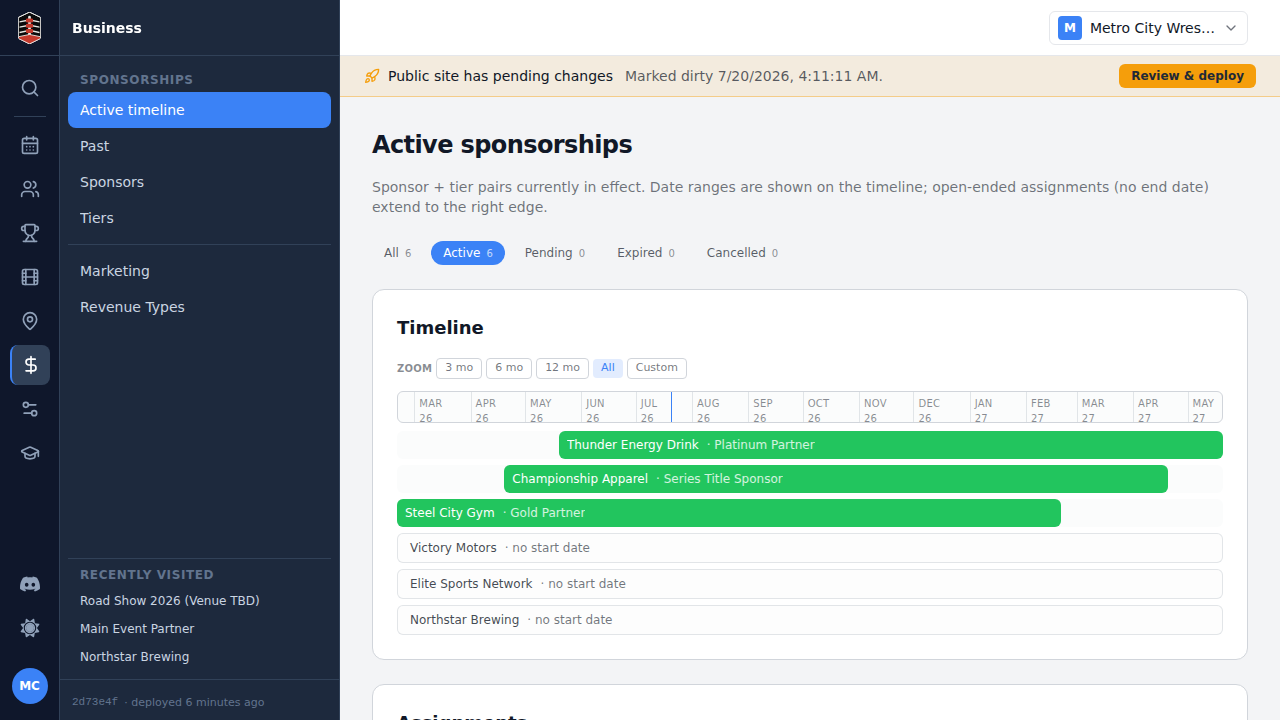
Open Business → Sponsorships. The default view collects your active assignments so you can see which sponsors are currently attached to events.
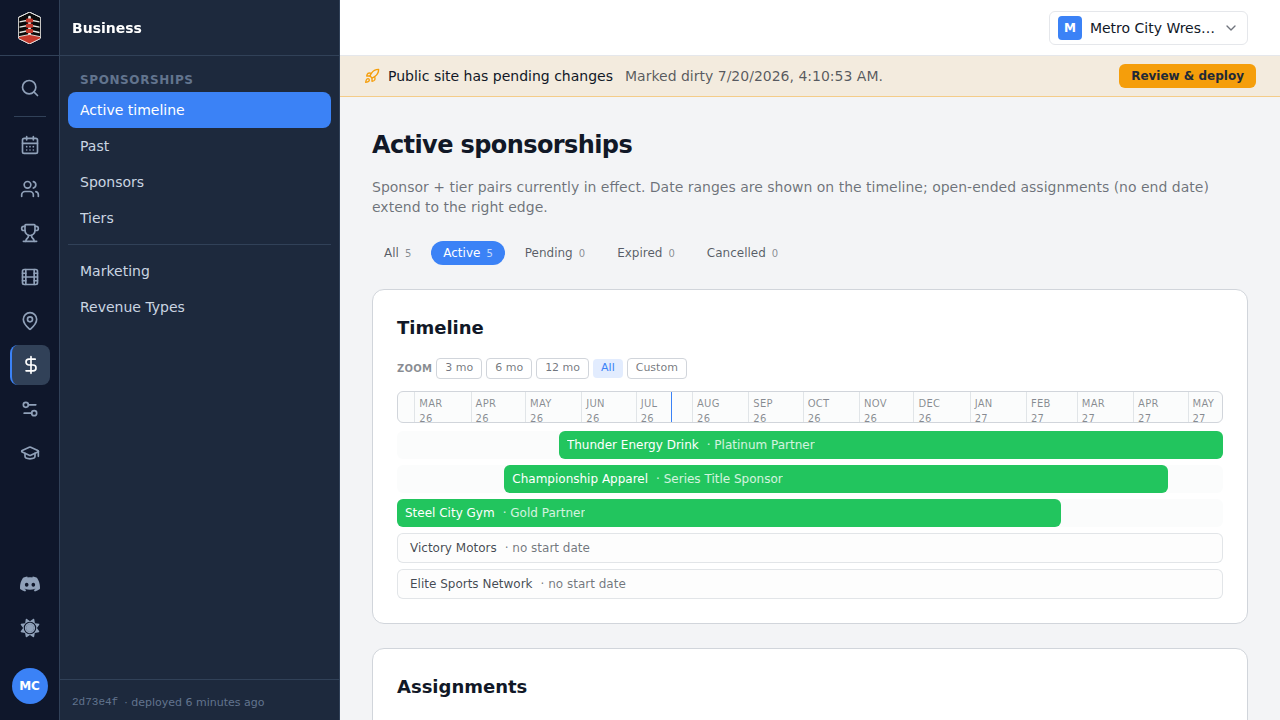
Create the sponsor
Open the sponsors area, select New sponsor, and enter the business name.
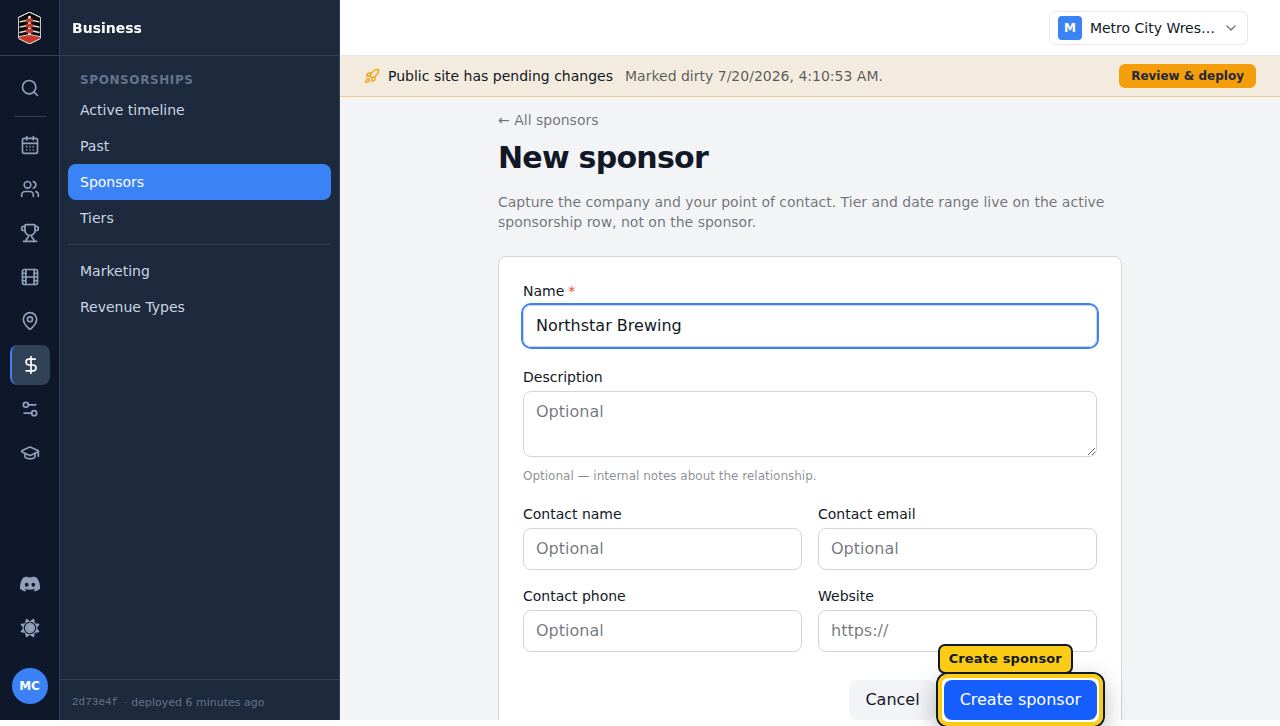
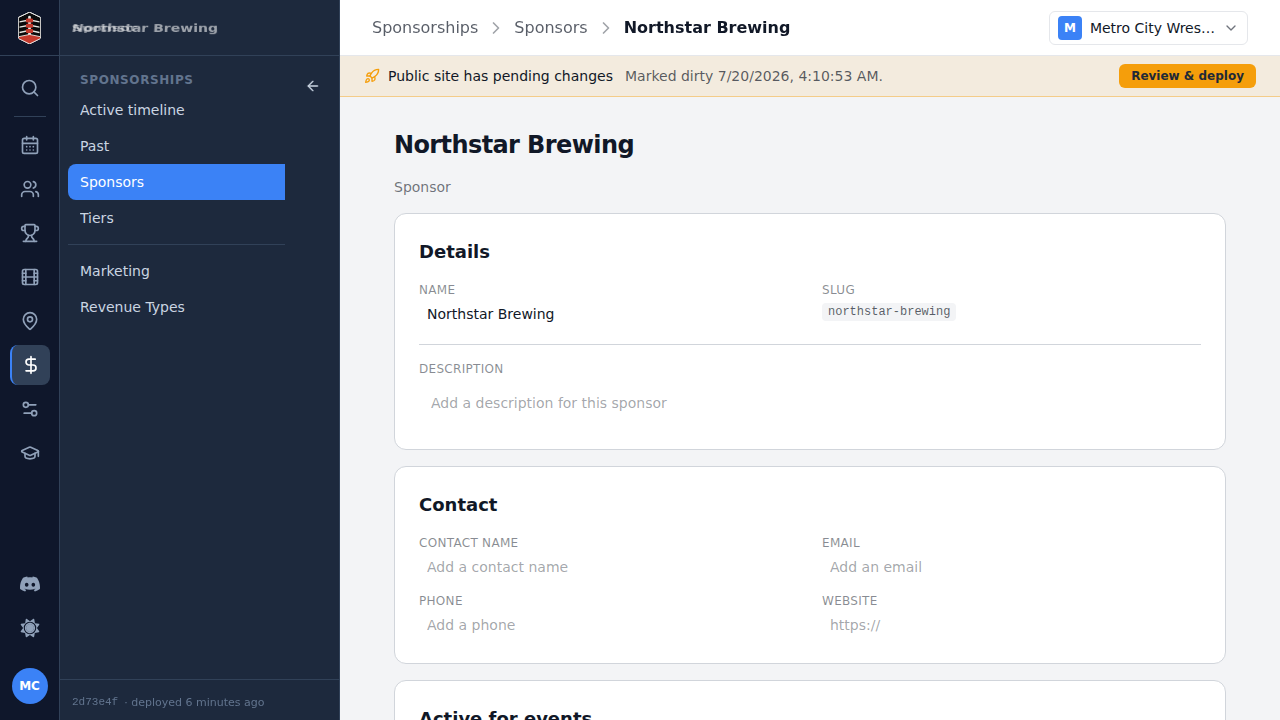
Select Create sponsor. The sponsor's page becomes the home for its details and sponsorship history.
Create the tier
Open the tiers area and select New sponsorship tier. Give the tier a clear name, enter its cost, and keep its scope set to Single event for an event-specific package.
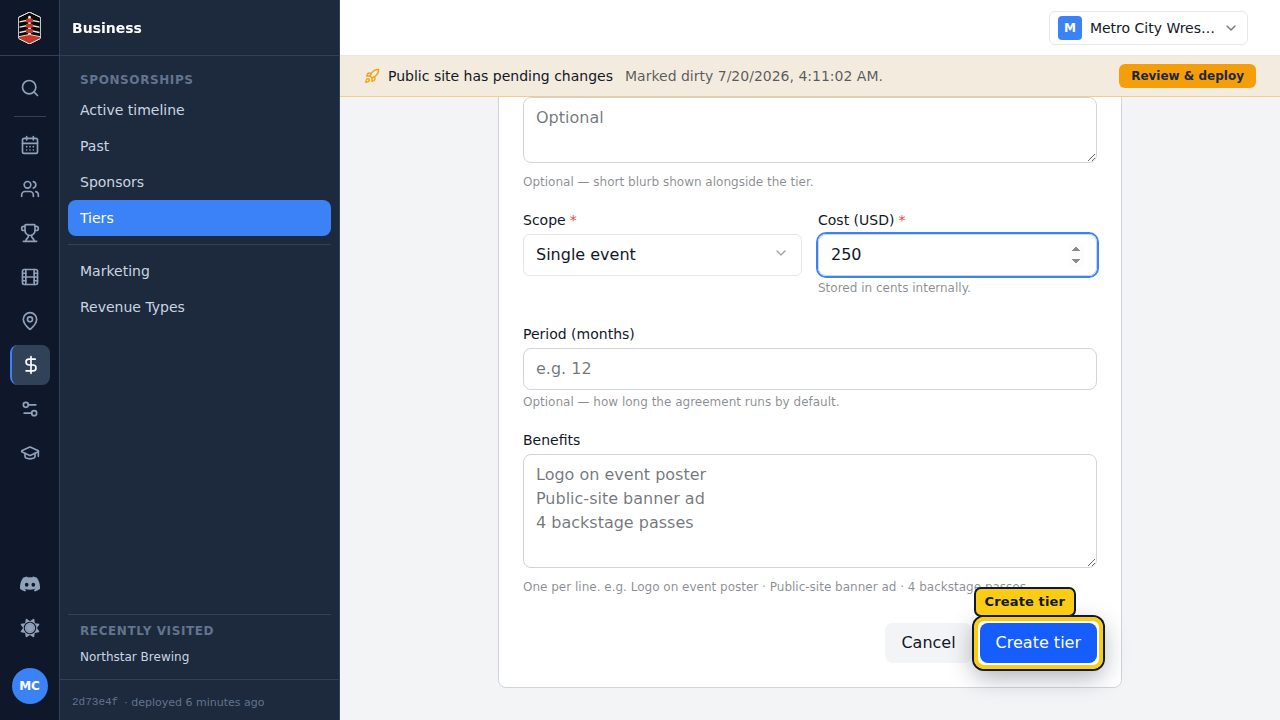
Select Create tier to save the package.
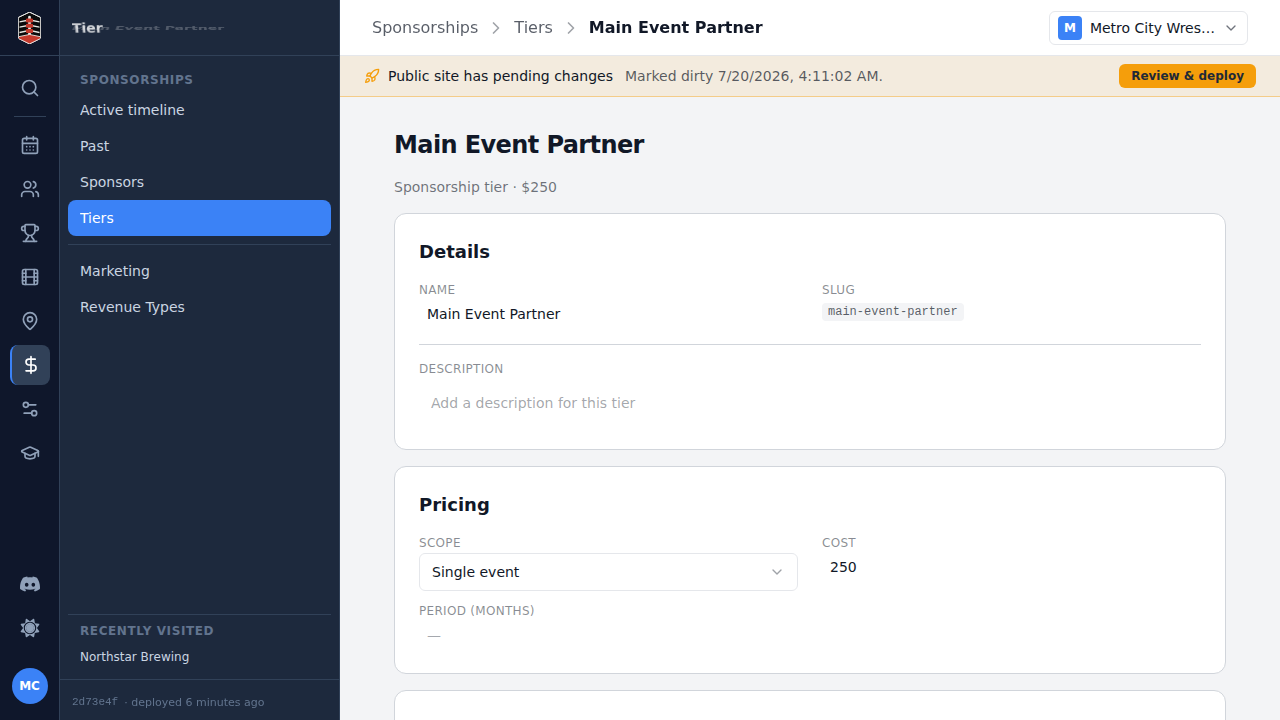
Attach the sponsor to an event
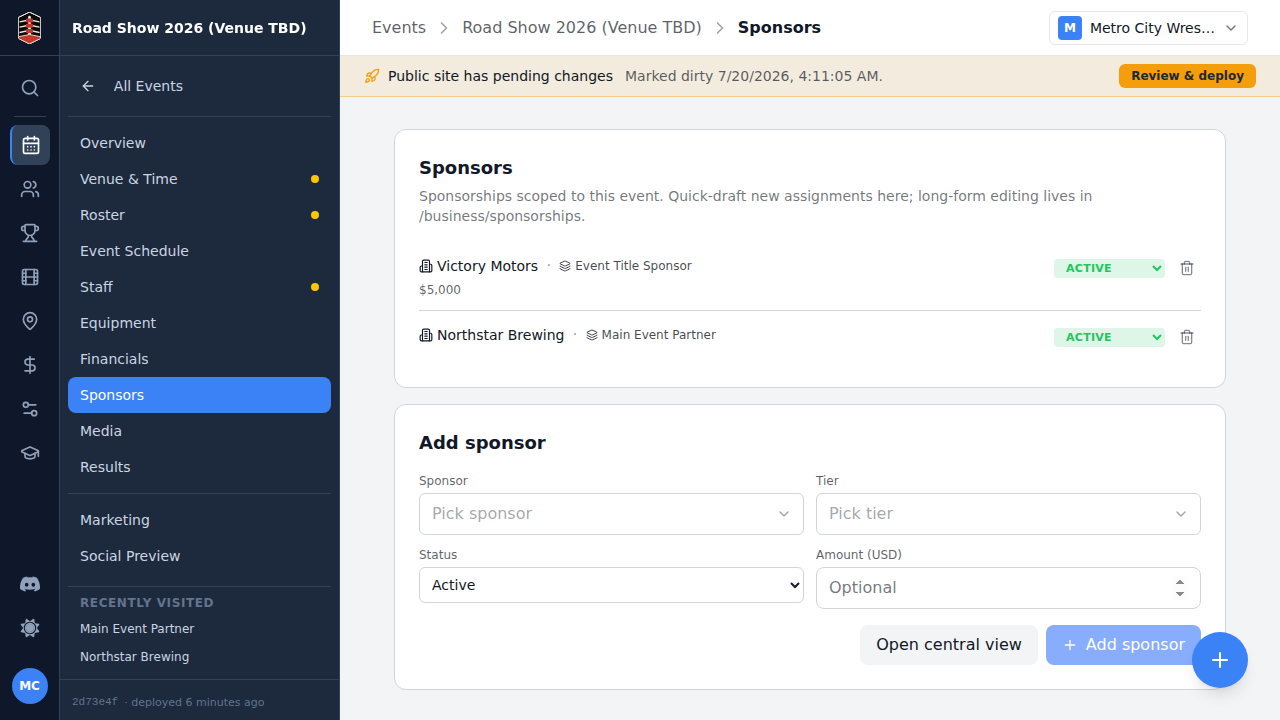
Open the event and go to its Sponsors tab. The Add sponsor panel sits alongside the event's existing sponsorships.
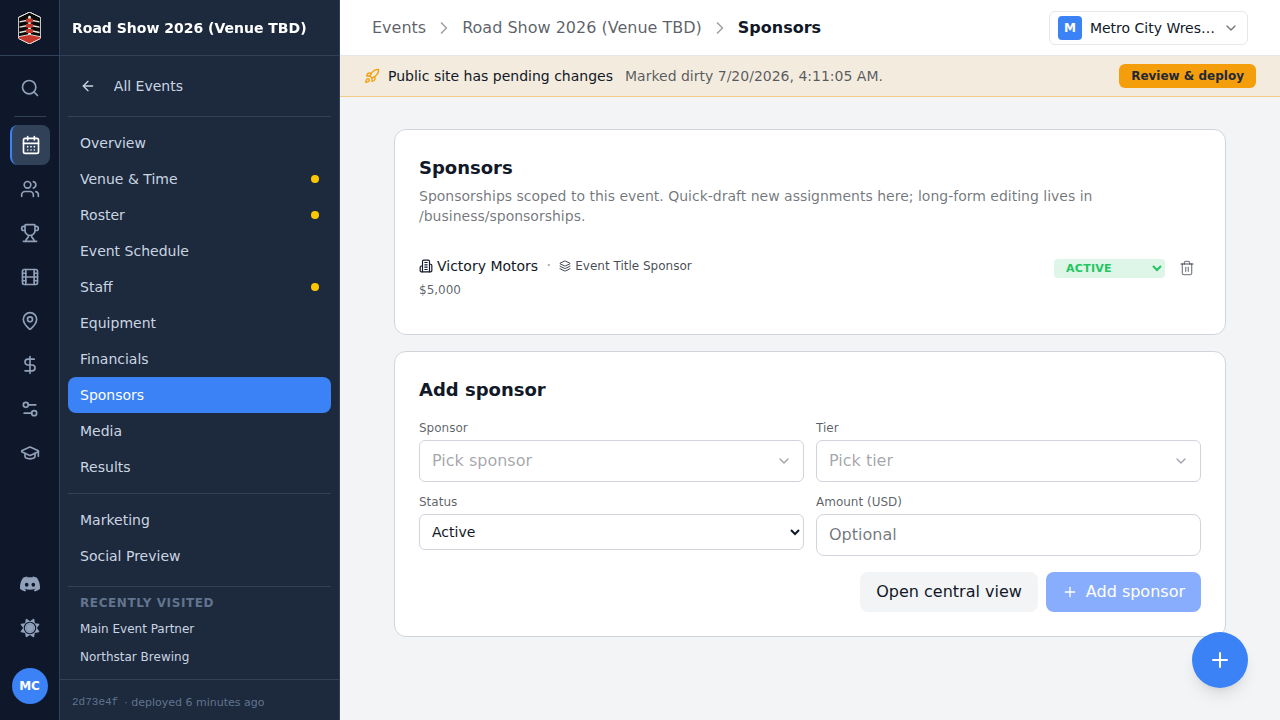
Choose the sponsor and tier you created. Leave the status as Active when the agreement is currently in effect.
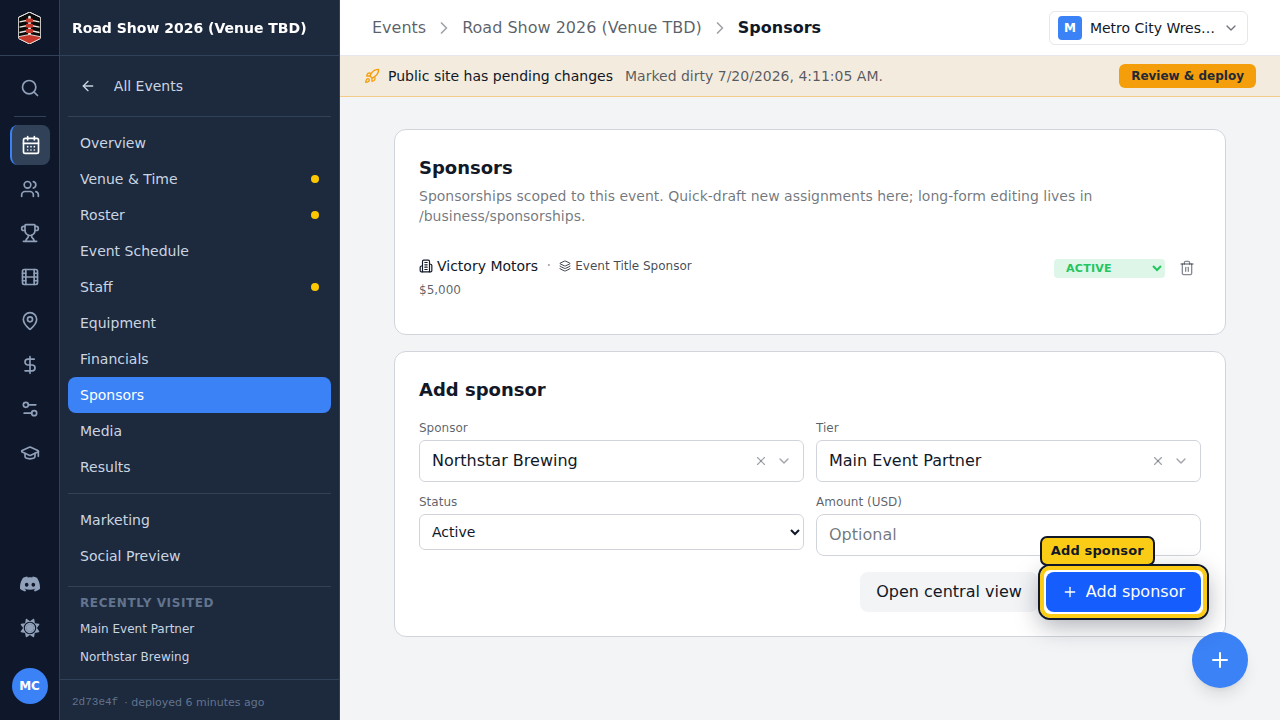
Select Add sponsor. The assignment appears immediately on the event with links back to both records.
Return to Business → Sponsorships. The assignment also appears in the central active list with its event, giving you one place to review current commitments across the promotion.