'%3e%3c!--%20mat:%20red%20chevron%20trailing%20at%20the%20rope%20angle,%20cream%20top%20edge%20--%3e%3cpath%20d='M10%20392%20L181%20358%20Q187%20356.6%20193%20358%20L364%20392%20L364%20520%20L10%20520%20Z'%20fill='%23C5392C'/%3e%3cpath%20d='M10%20392%20L181%20358%20Q187%20356.6%20193%20358%20L364%20392'%20fill='none'%20stroke='%23EDECE8'%20stroke-width='14'/%3e%3c/g%3e%3cpath%20d='M178%206%20Q187%201%20196%206%20L364%2084%20Q371%2088%20371%2097%20L371%20396%20Q371%20417%20350%20428%20L195%20503%20Q187%20507%20179%20503%20L24%20428%20Q3%20417%203%20396%20L3%2097%20Q3%2088%2010%2084%20Z'%20fill='none'%20stroke='%23EDECE8'%20stroke-width='14'%20stroke-linejoin='round'/%3e%3cg%20fill='%23C5392C'%3e%3crect%20x='129'%20y='103'%20width='116'%20height='62'%20rx='20'/%3e%3crect%20x='129'%20y='187'%20width='116'%20height='62'%20rx='20'/%3e%3crect%20x='129'%20y='271'%20width='116'%20height='62'%20rx='20'/%3e%3c/g%3e%3c/svg%3e) Turnbuckle
TurnbuckleCustomizing your branding
Shape the identity your promotion presents with its name, tagline, colors, and contact details.
Branding settings hold the identity your promotion carries across Turnbuckle. Keep this information current so the name, message, and visual choices shown to your audience stay consistent.
Open the branding editor
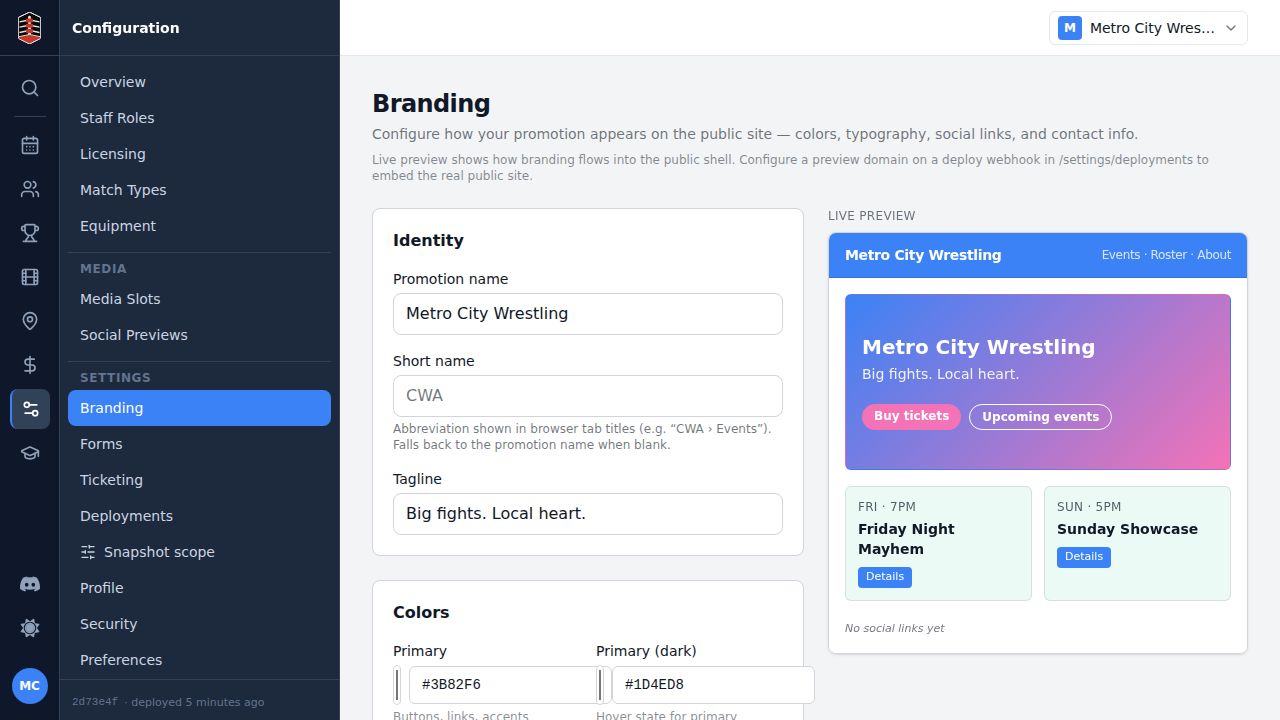
Go to Settings → Branding. The editor groups your promotion's identity, colors, and supporting details into sections you can update from one page.
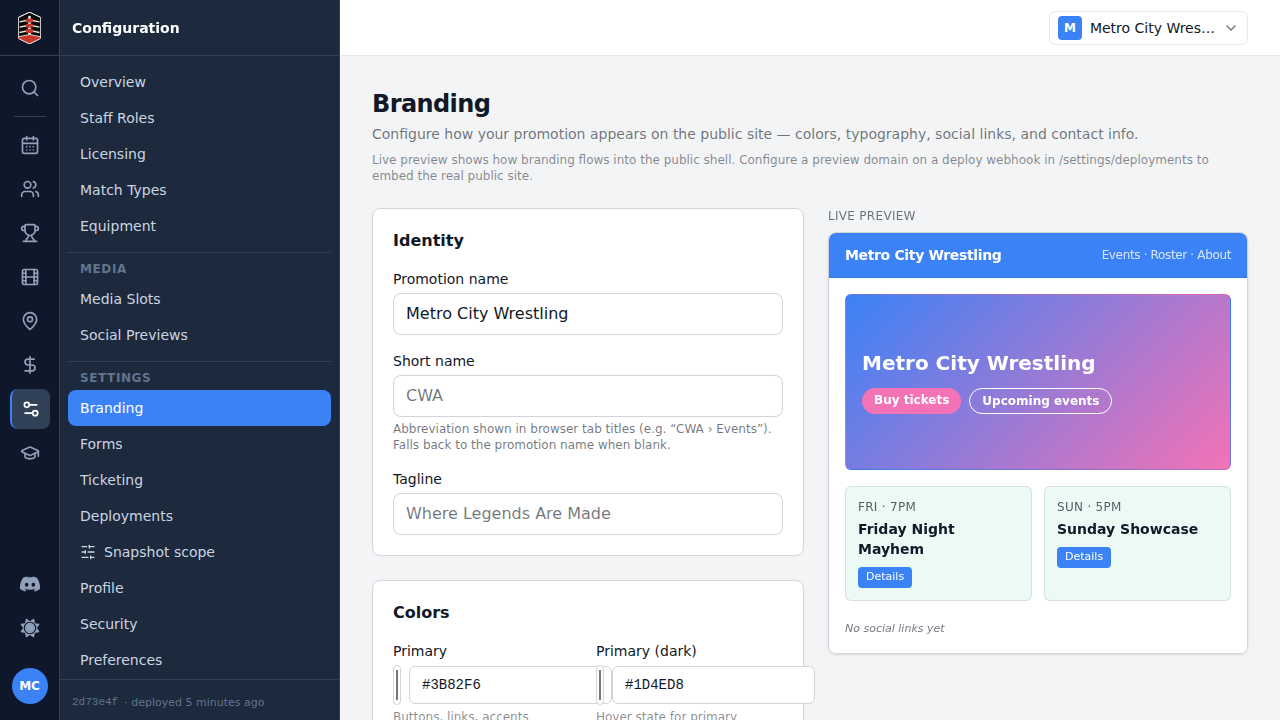
Update your identity
Edit the field you want to change. For example, use Tagline for the short line that expresses what makes your promotion distinctive. Once a value changes, Save changes becomes available.
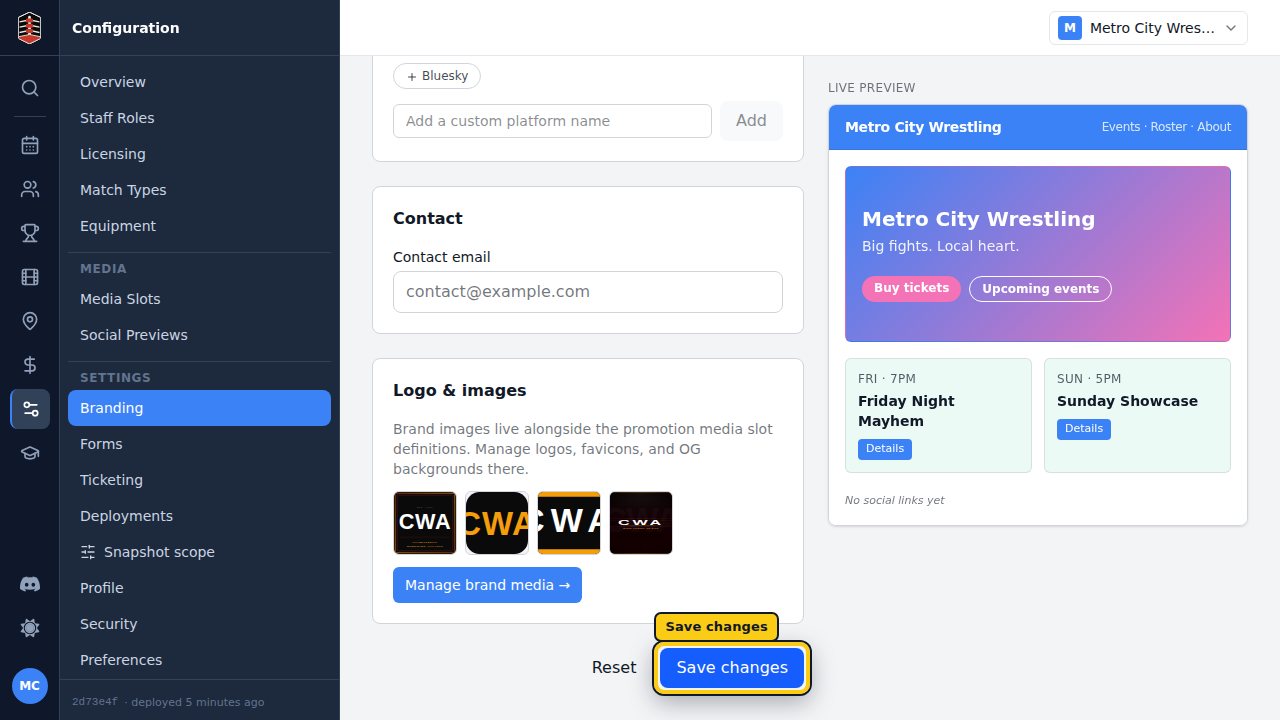
Save the new branding
Select Save changes before leaving the page. The saved value will be there the next time you open Branding, ready for the places that use your promotion's identity.