'%3e%3c!--%20mat:%20red%20chevron%20trailing%20at%20the%20rope%20angle,%20cream%20top%20edge%20--%3e%3cpath%20d='M10%20392%20L181%20358%20Q187%20356.6%20193%20358%20L364%20392%20L364%20520%20L10%20520%20Z'%20fill='%23C5392C'/%3e%3cpath%20d='M10%20392%20L181%20358%20Q187%20356.6%20193%20358%20L364%20392'%20fill='none'%20stroke='%23EDECE8'%20stroke-width='14'/%3e%3c/g%3e%3cpath%20d='M178%206%20Q187%201%20196%206%20L364%2084%20Q371%2088%20371%2097%20L371%20396%20Q371%20417%20350%20428%20L195%20503%20Q187%20507%20179%20503%20L24%20428%20Q3%20417%203%20396%20L3%2097%20Q3%2088%2010%2084%20Z'%20fill='none'%20stroke='%23EDECE8'%20stroke-width='14'%20stroke-linejoin='round'/%3e%3cg%20fill='%23C5392C'%3e%3crect%20x='129'%20y='103'%20width='116'%20height='62'%20rx='20'/%3e%3crect%20x='129'%20y='187'%20width='116'%20height='62'%20rx='20'/%3e%3crect%20x='129'%20y='271'%20width='116'%20height='62'%20rx='20'/%3e%3c/g%3e%3c/svg%3e) Turnbuckle
TurnbuckleEnrolling an academy student
Add someone from your personnel records to the academy and give them a student-facing name.
Academy students begin with a personnel record. Enrolling someone connects that person to your training roster while keeping their academy status and display name separate from the rest of their personnel details.
Open the student roster
Choose Academy → Students to see everyone currently enrolled. Select New student when you're ready to add someone.
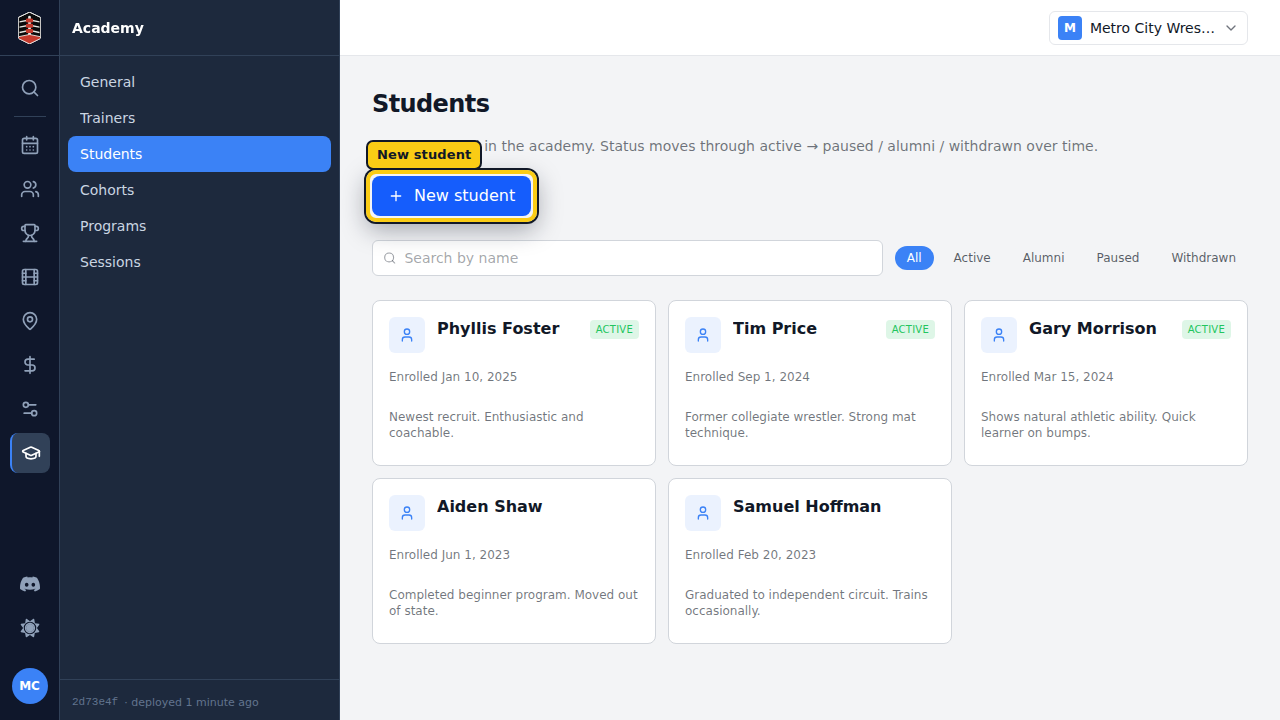
The status filters help you move between active students, alumni, paused enrollments, and the complete roster. Use All when you need to check whether someone already has a student record.
Choose the person to enroll
The new-student form asks for an existing person. If they are not in the picker yet, add them under Personnel first, then return here to enroll them.
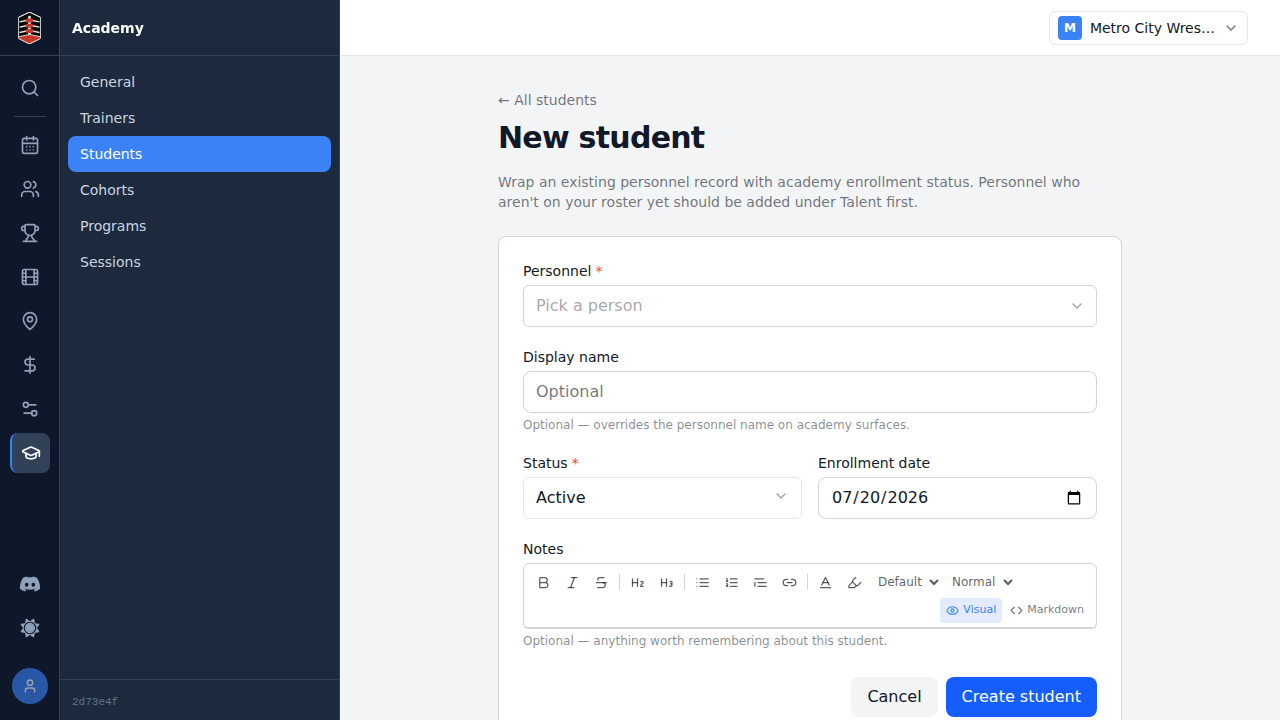
Pick the person, then add an optional display name. The display name is useful when a student should be known around the academy by something other than their full personnel name.
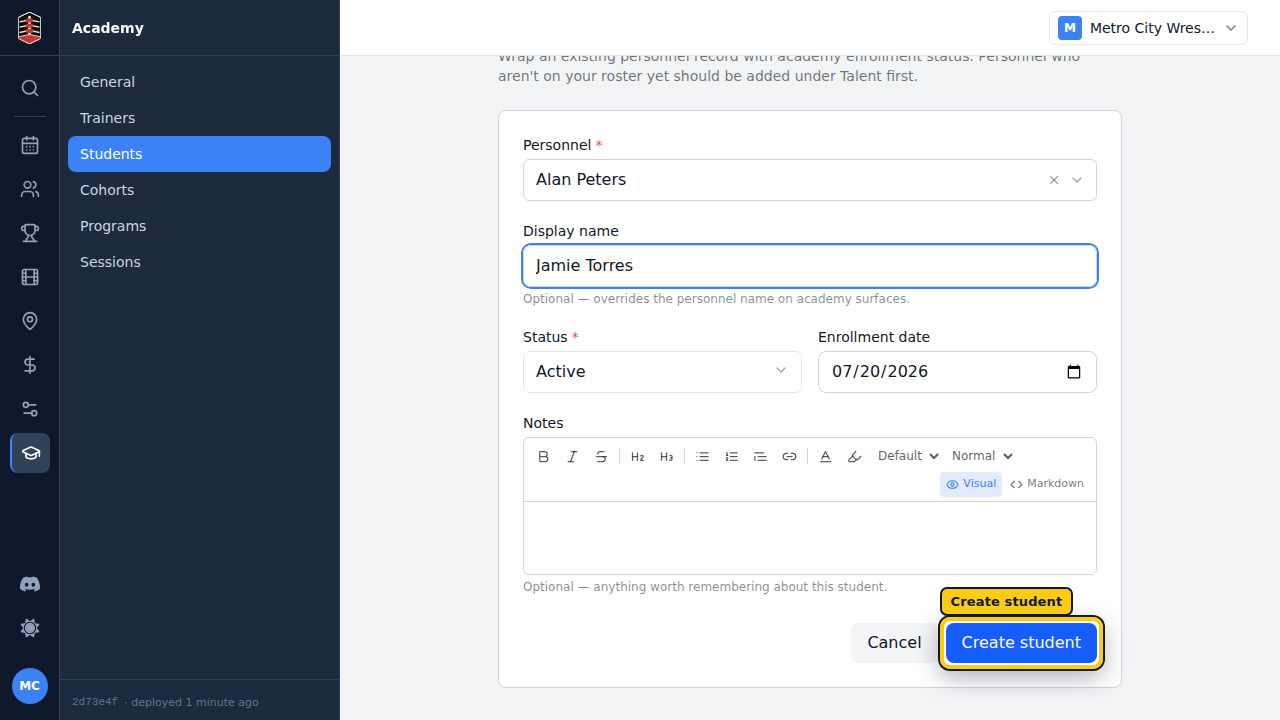
Create the student
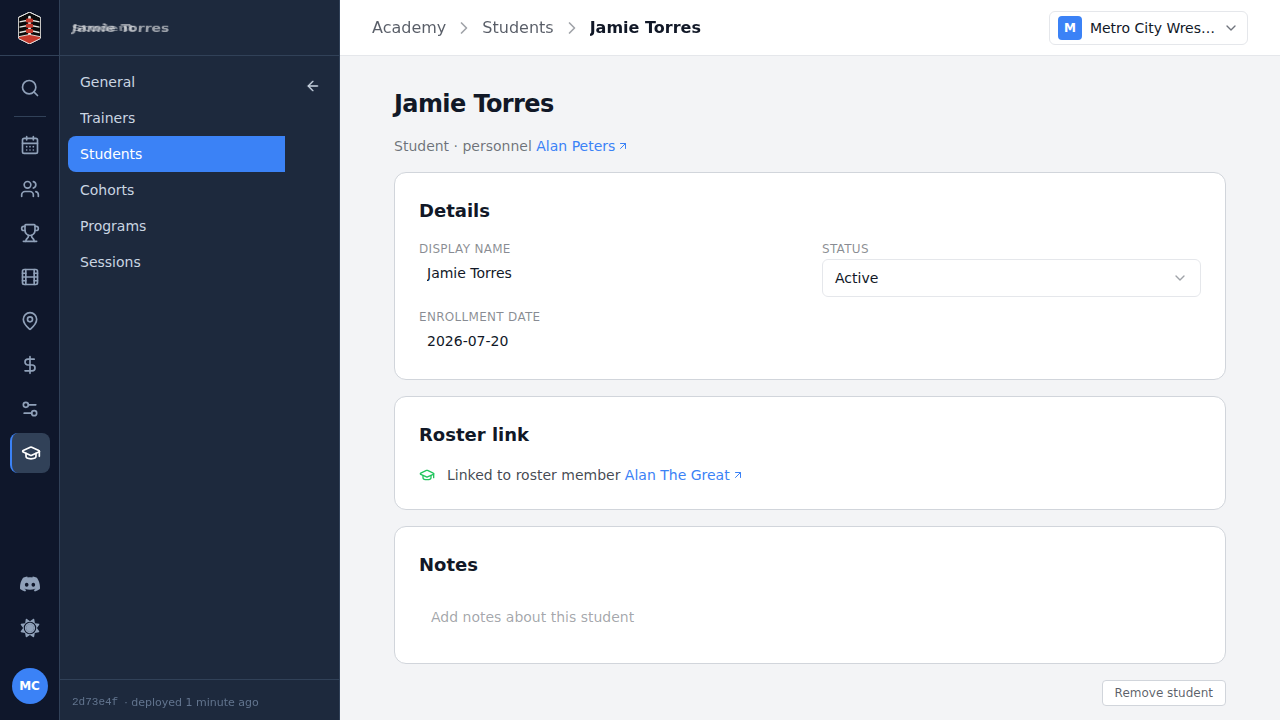
Select Create student. Turnbuckle opens the new student's page, where you can manage their enrollment details and continue building their training record.
Return to Students and search by the display name whenever you need to find the record quickly.