'%3e%3c!--%20mat:%20red%20chevron%20trailing%20at%20the%20rope%20angle,%20cream%20top%20edge%20--%3e%3cpath%20d='M10%20392%20L181%20358%20Q187%20356.6%20193%20358%20L364%20392%20L364%20520%20L10%20520%20Z'%20fill='%23C5392C'/%3e%3cpath%20d='M10%20392%20L181%20358%20Q187%20356.6%20193%20358%20L364%20392'%20fill='none'%20stroke='%23EDECE8'%20stroke-width='14'/%3e%3c/g%3e%3cpath%20d='M178%206%20Q187%201%20196%206%20L364%2084%20Q371%2088%20371%2097%20L371%20396%20Q371%20417%20350%20428%20L195%20503%20Q187%20507%20179%20503%20L24%20428%20Q3%20417%203%20396%20L3%2097%20Q3%2088%2010%2084%20Z'%20fill='none'%20stroke='%23EDECE8'%20stroke-width='14'%20stroke-linejoin='round'/%3e%3cg%20fill='%23C5392C'%3e%3crect%20x='129'%20y='103'%20width='116'%20height='62'%20rx='20'/%3e%3crect%20x='129'%20y='187'%20width='116'%20height='62'%20rx='20'/%3e%3crect%20x='129'%20y='271'%20width='116'%20height='62'%20rx='20'/%3e%3c/g%3e%3c/svg%3e) Turnbuckle
TurnbuckleScheduling your first event
Add a show to your calendar and continue planning from its overview.
Every show starts on the All Events list. From there, you can add a name and date in a few moments, then continue planning from the event's overview.
Browse your events
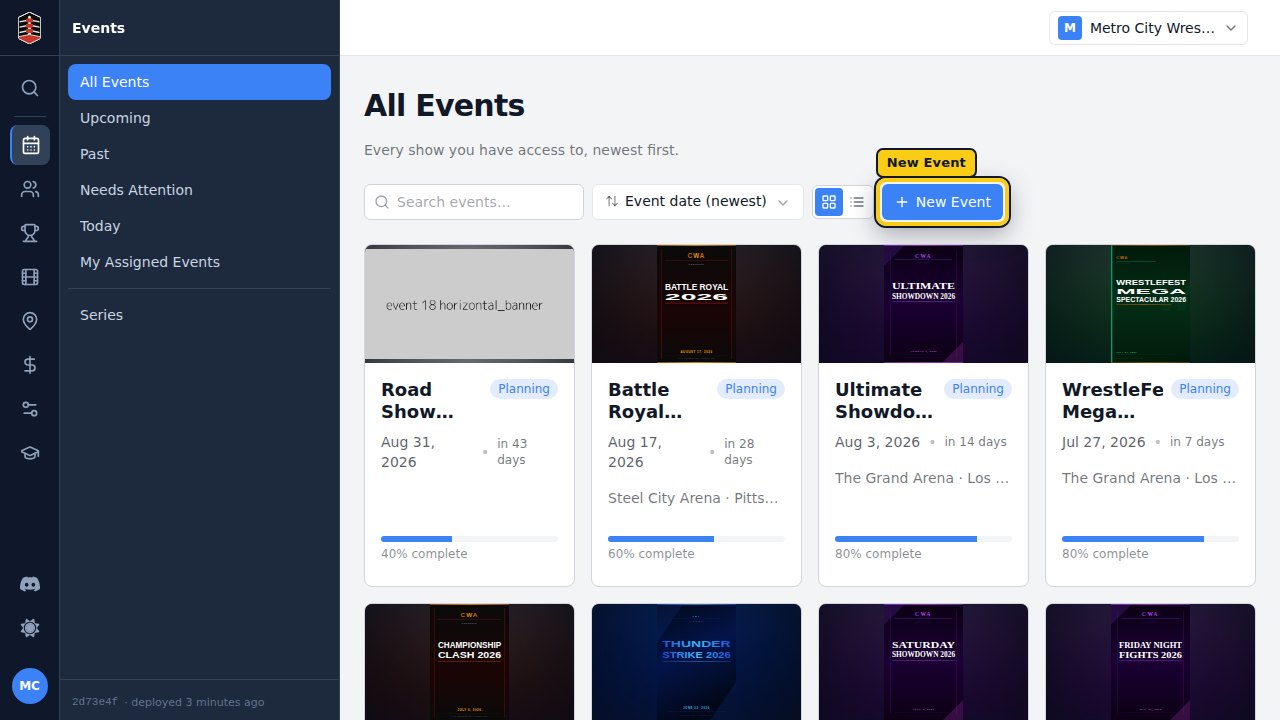
Open Events in the sidebar. Past and upcoming shows appear here as cards, and the New Event button starts a new one.
Start a new event
Select New Event. Only the name and date are required, so you can get the show onto the calendar before its venue, schedule, staff, and marketing are finalized.
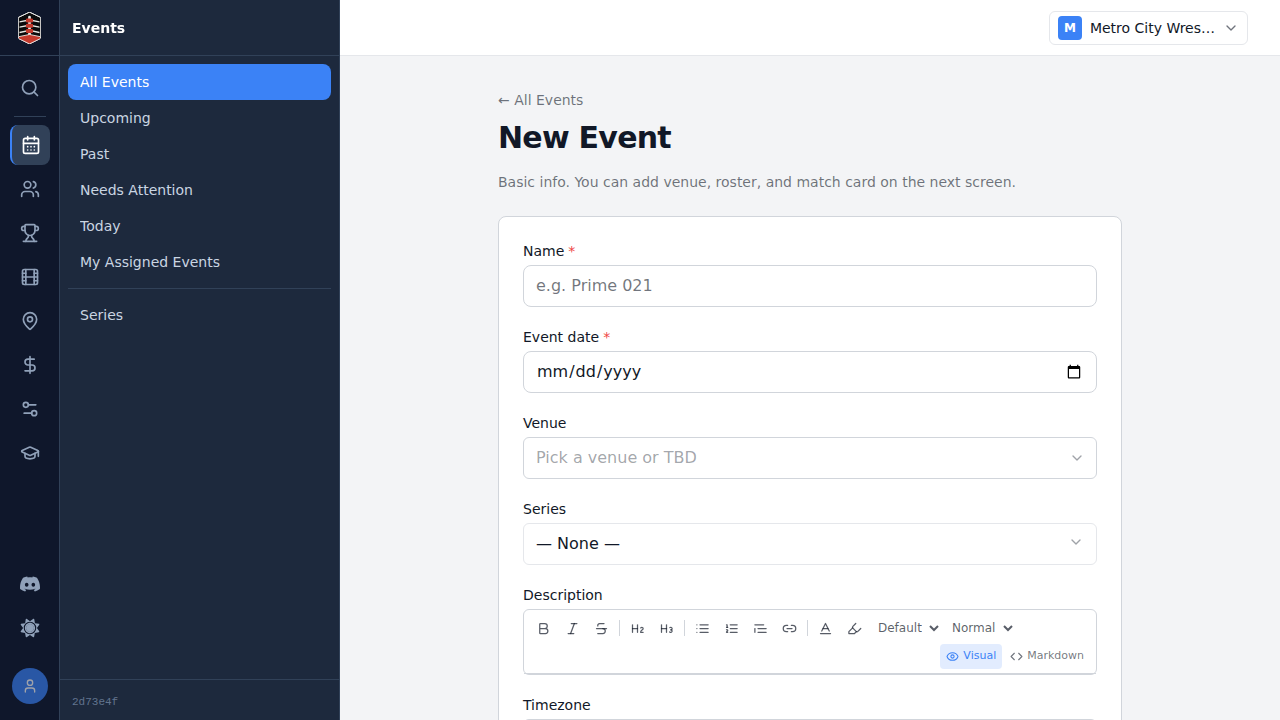
Give the show a recognizable name and pick its date. Turnbuckle compares it with your existing calendar and warns you about nearby events before you commit.
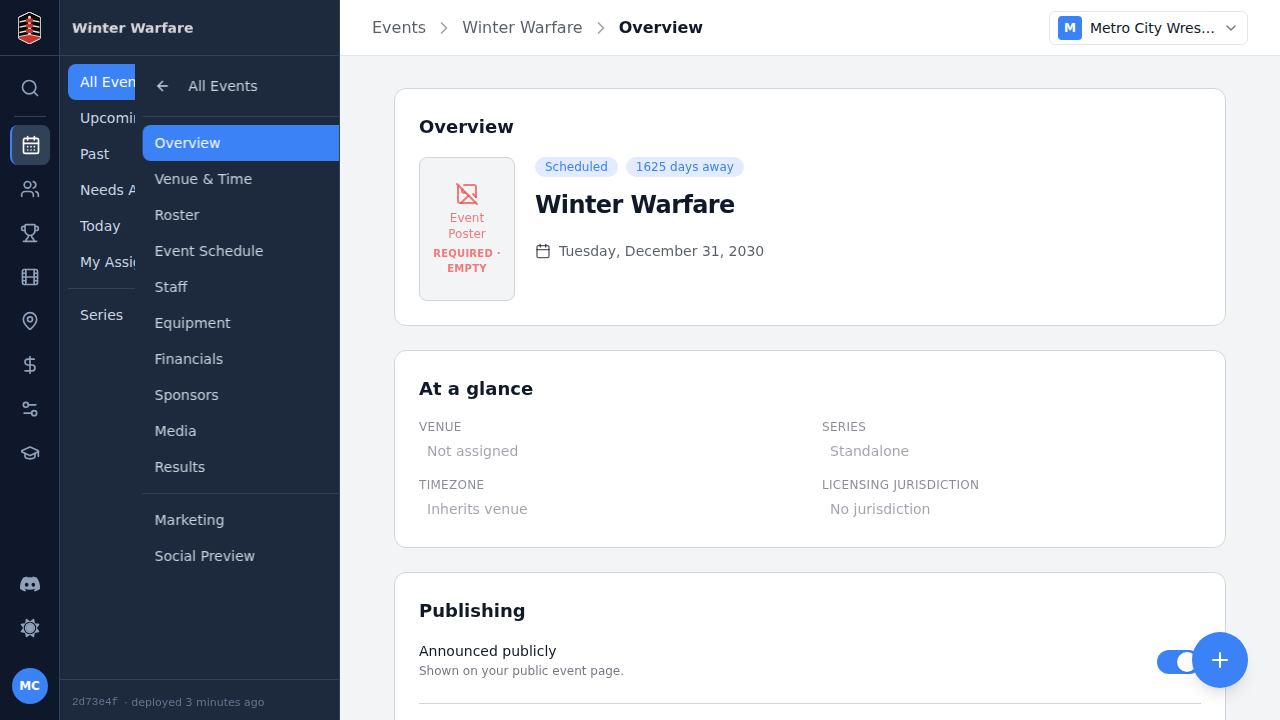
Land on the overview
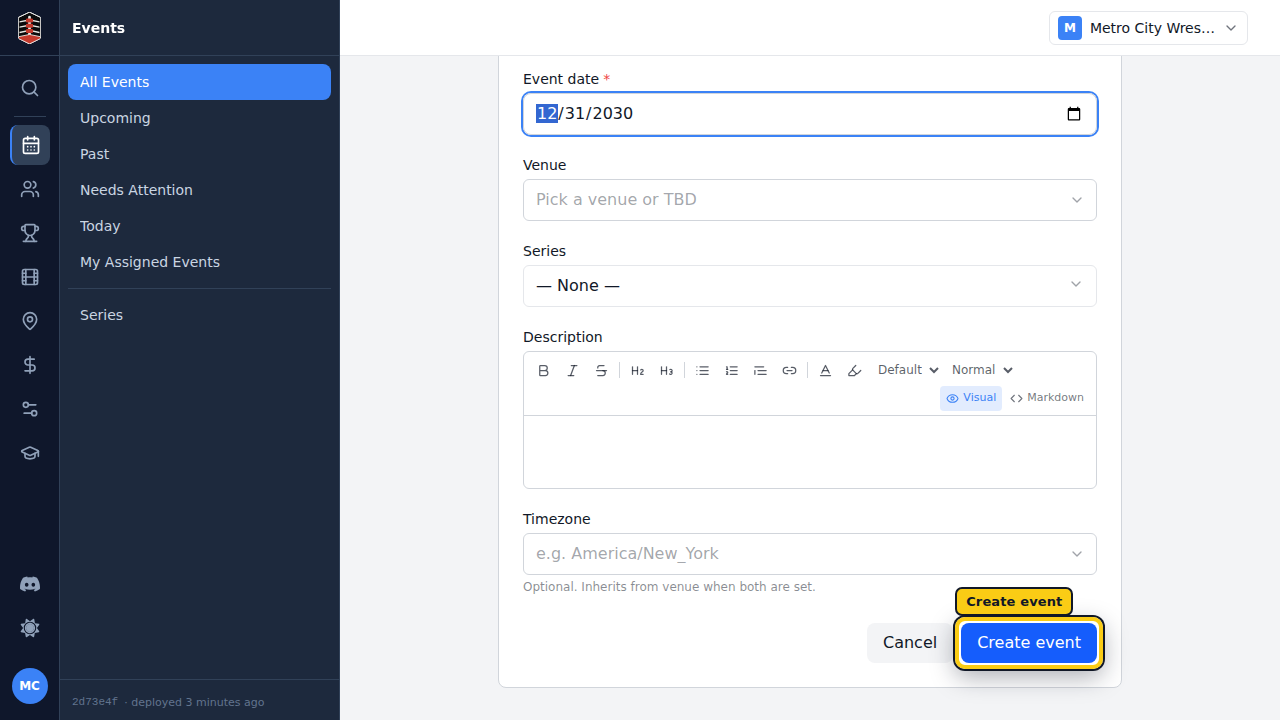
Select Create event to open the new show's overview. This is the starting point for its schedule, roster, financials, sponsors, and marketing.
Review the name and date, then use the overview's next steps to keep planning.
Find the event again
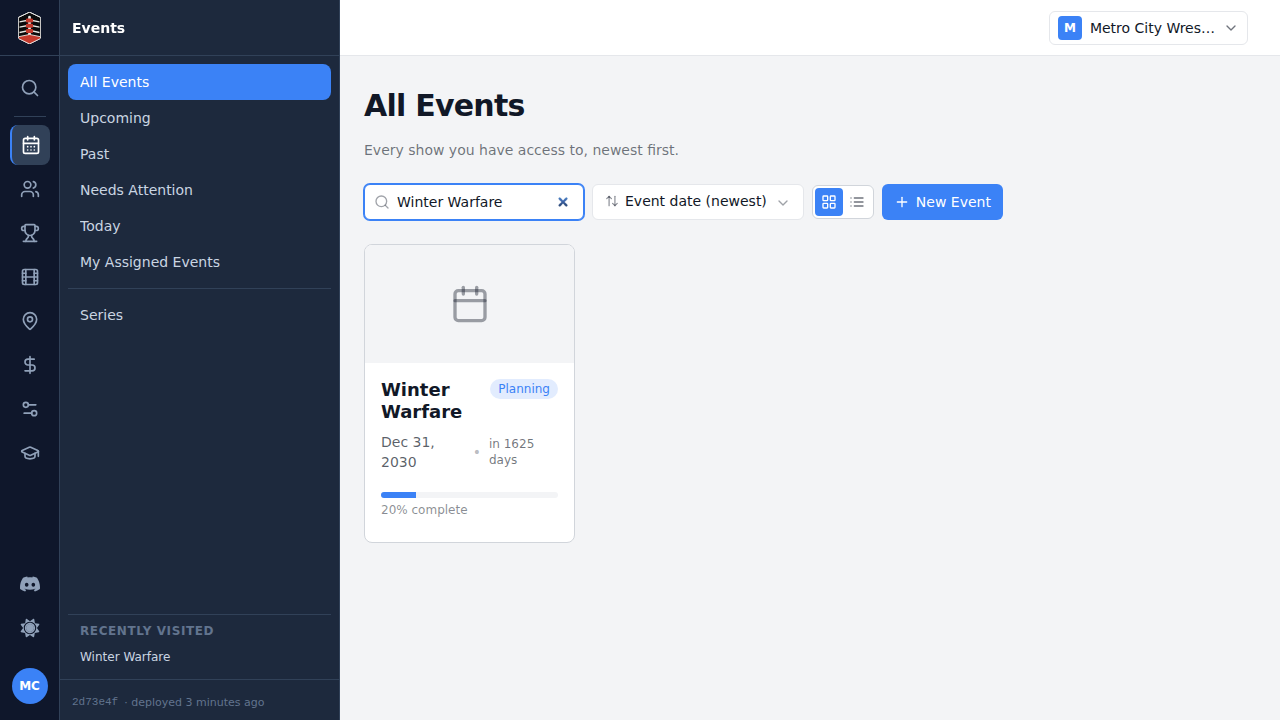
Back on All Events, search for the show by name to open it again. When you're ready, continue with its venue, staff, and match card.