'%3e%3c!--%20mat:%20red%20chevron%20trailing%20at%20the%20rope%20angle,%20cream%20top%20edge%20--%3e%3cpath%20d='M10%20392%20L181%20358%20Q187%20356.6%20193%20358%20L364%20392%20L364%20520%20L10%20520%20Z'%20fill='%23C5392C'/%3e%3cpath%20d='M10%20392%20L181%20358%20Q187%20356.6%20193%20358%20L364%20392'%20fill='none'%20stroke='%23EDECE8'%20stroke-width='14'/%3e%3c/g%3e%3cpath%20d='M178%206%20Q187%201%20196%206%20L364%2084%20Q371%2088%20371%2097%20L371%20396%20Q371%20417%20350%20428%20L195%20503%20Q187%20507%20179%20503%20L24%20428%20Q3%20417%203%20396%20L3%2097%20Q3%2088%2010%2084%20Z'%20fill='none'%20stroke='%23EDECE8'%20stroke-width='14'%20stroke-linejoin='round'/%3e%3cg%20fill='%23C5392C'%3e%3crect%20x='129'%20y='103'%20width='116'%20height='62'%20rx='20'/%3e%3crect%20x='129'%20y='187'%20width='116'%20height='62'%20rx='20'/%3e%3crect%20x='129'%20y='271'%20width='116'%20height='62'%20rx='20'/%3e%3c/g%3e%3c/svg%3e) Turnbuckle
TurnbuckleBuilding your first match card
Create an event, book a match, and add a promo to the running order.
An event's Schedule is its running order. Matches and other segments live side by side there, so you can build the whole show in the order it will run.
Create the event
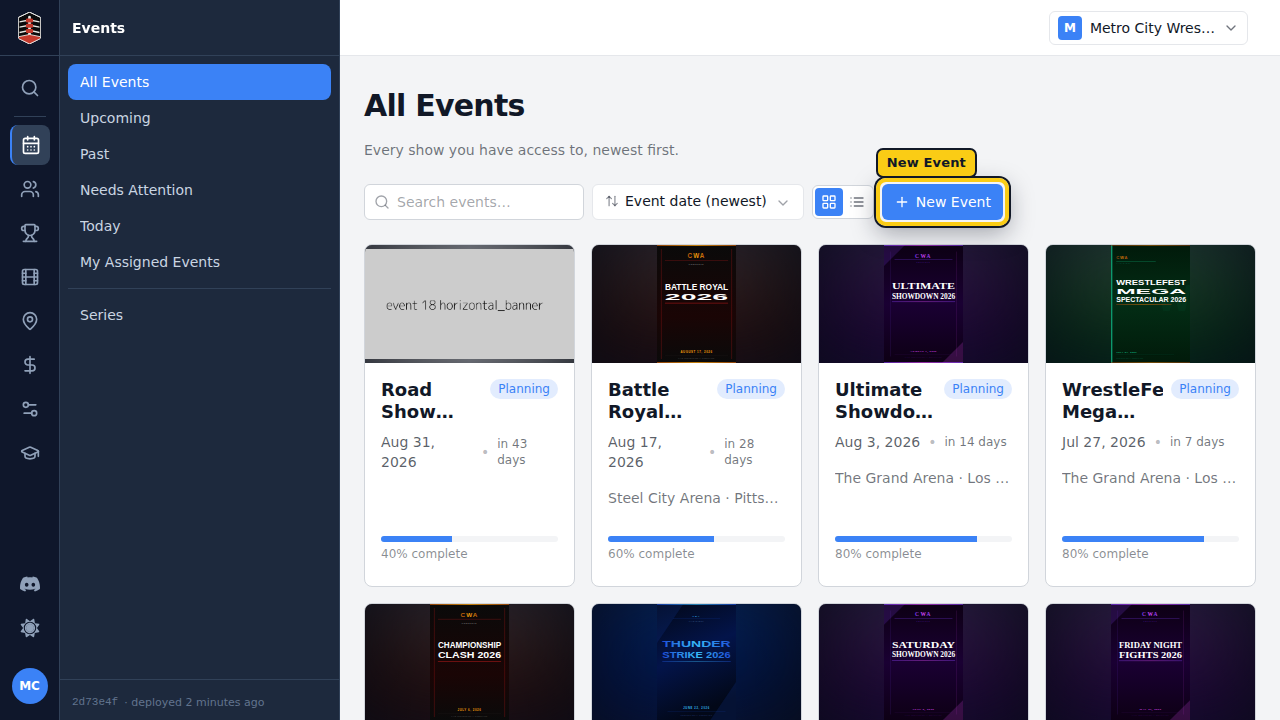
Open Events to see your promotion's shows, then select New Event.
Enter the show's name and date. You can add the venue and other planning details later from the event itself.
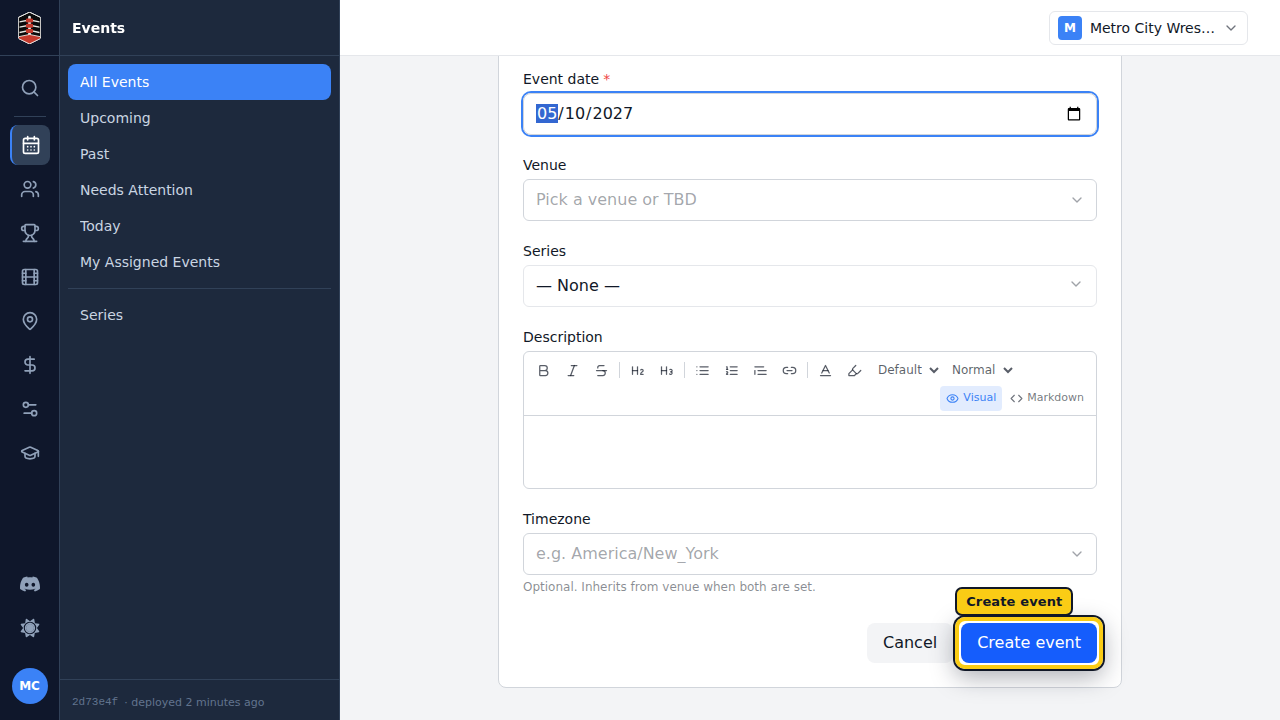
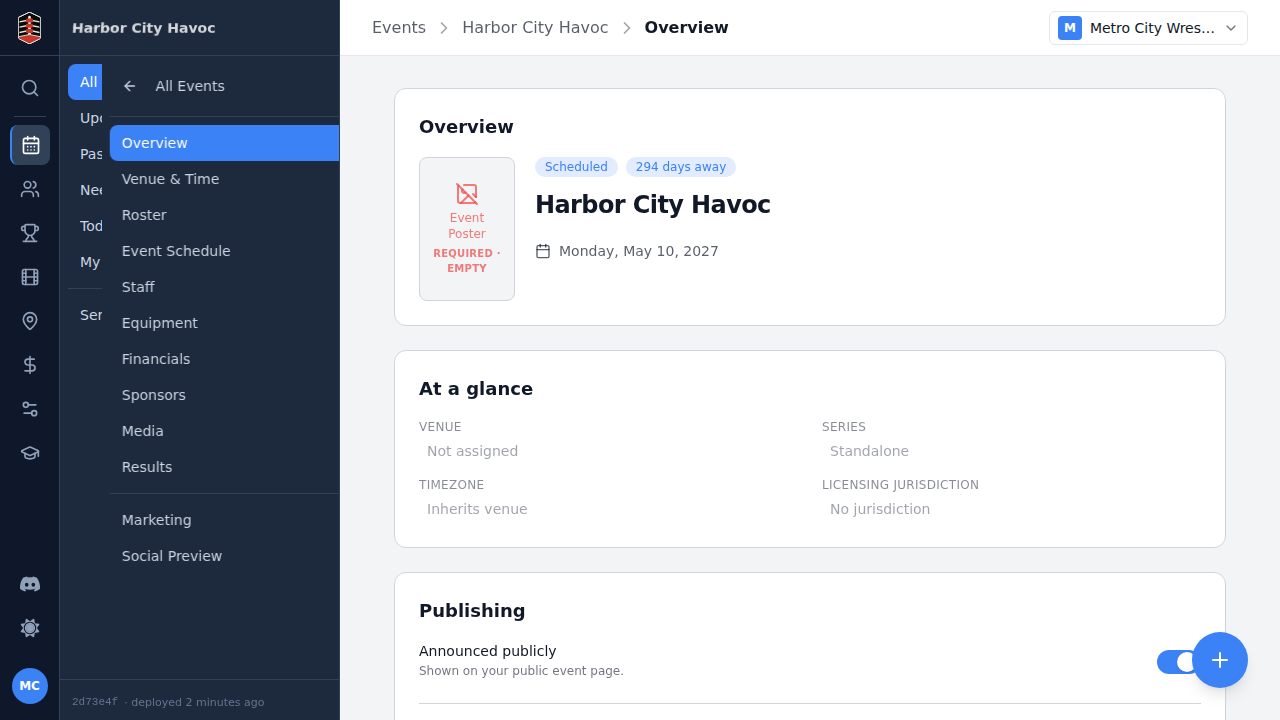
Select Create event to open the new event's overview.
Add the first match
Go to Schedule. A new event starts with an empty running order, ready for its first item.
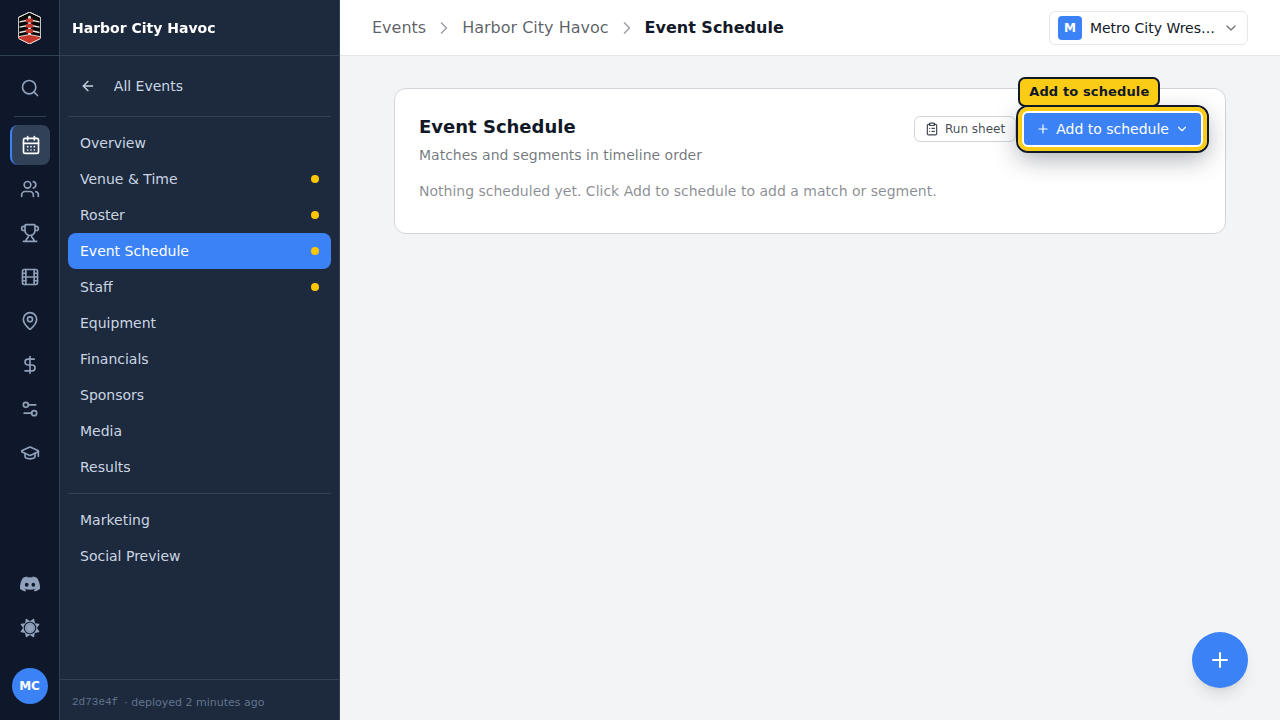
Select Add to schedule, then Match. Turnbuckle adds the match to the card and opens its editor.
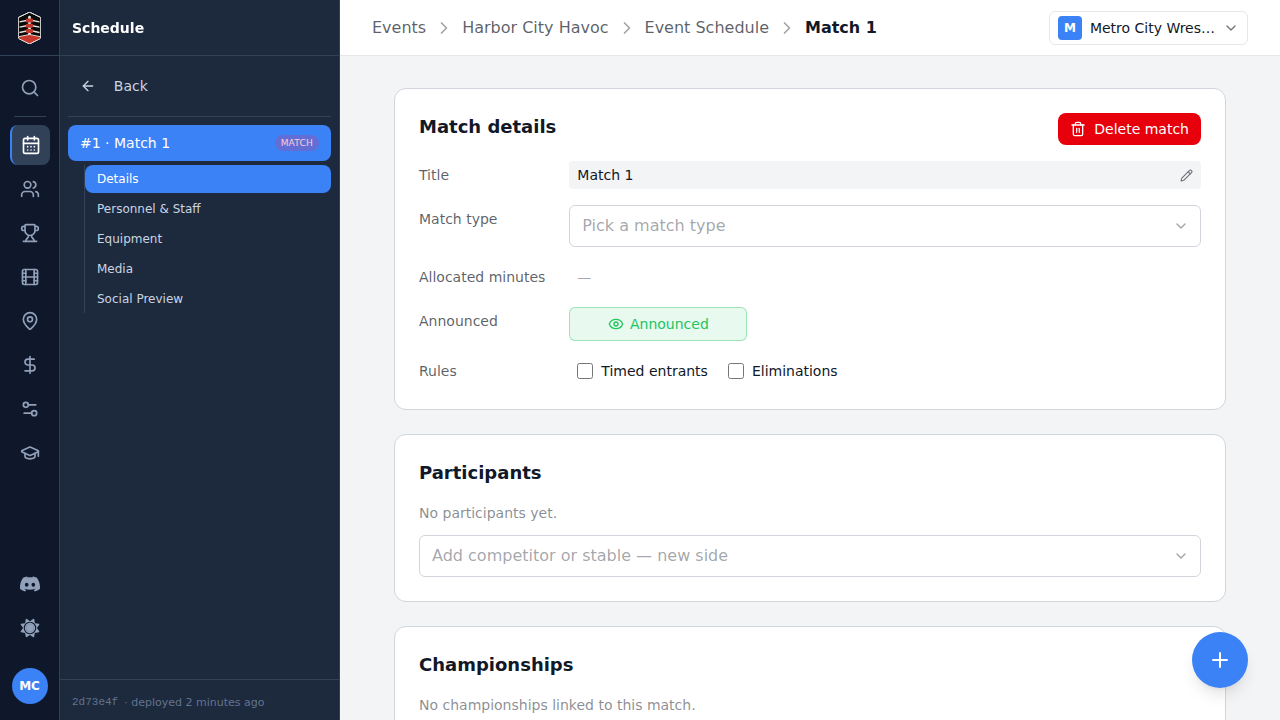
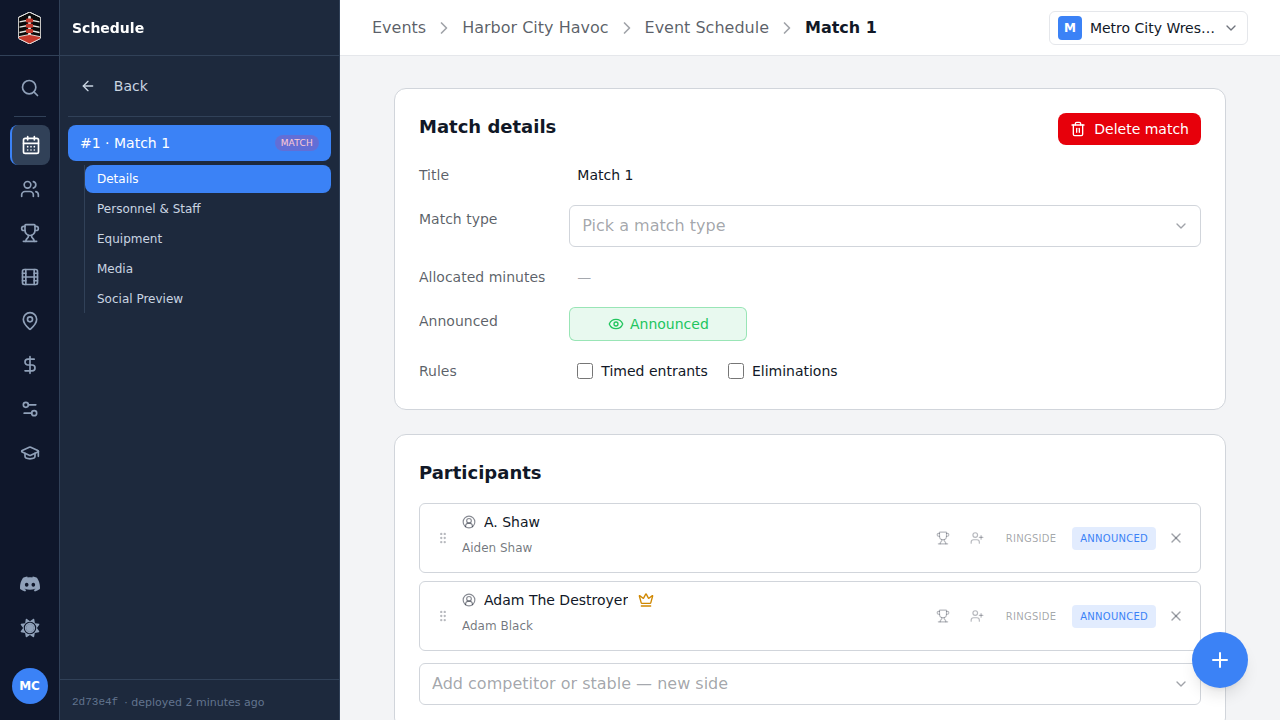
In Participants, use Add competitor or stable — new side to choose a wrestler for each side. Add more participants or stables the same way when the match calls for them.
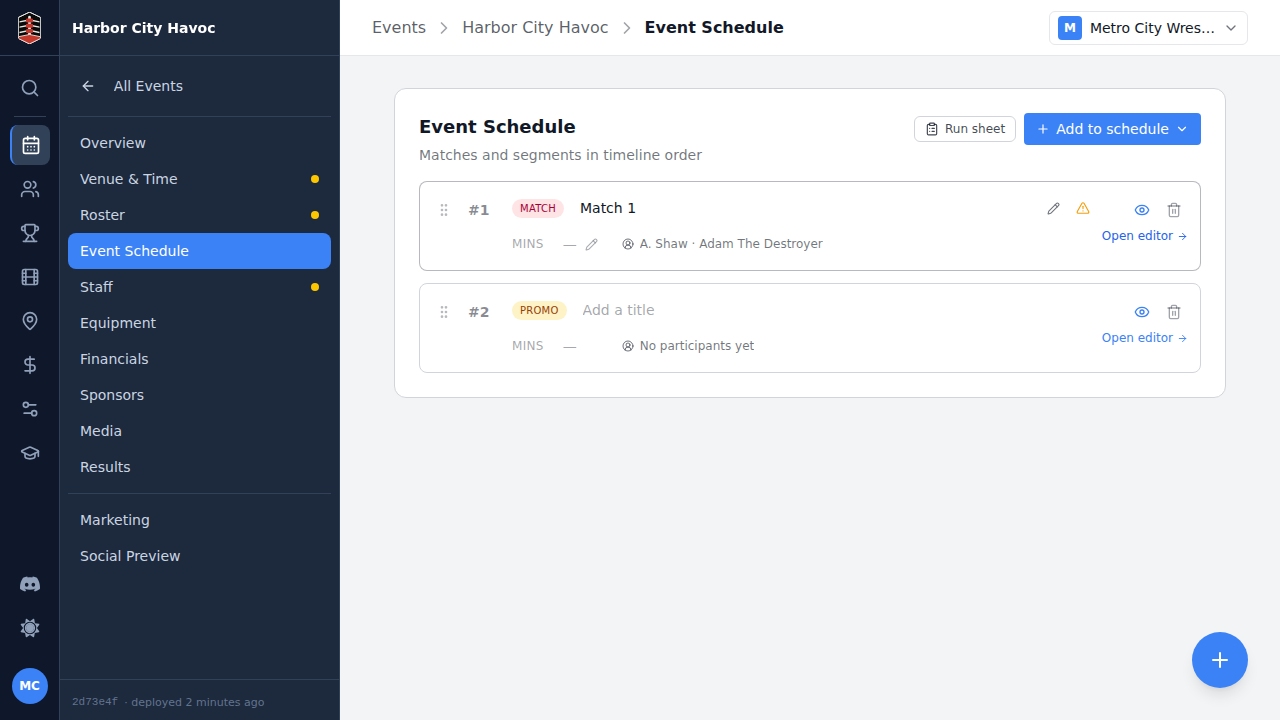
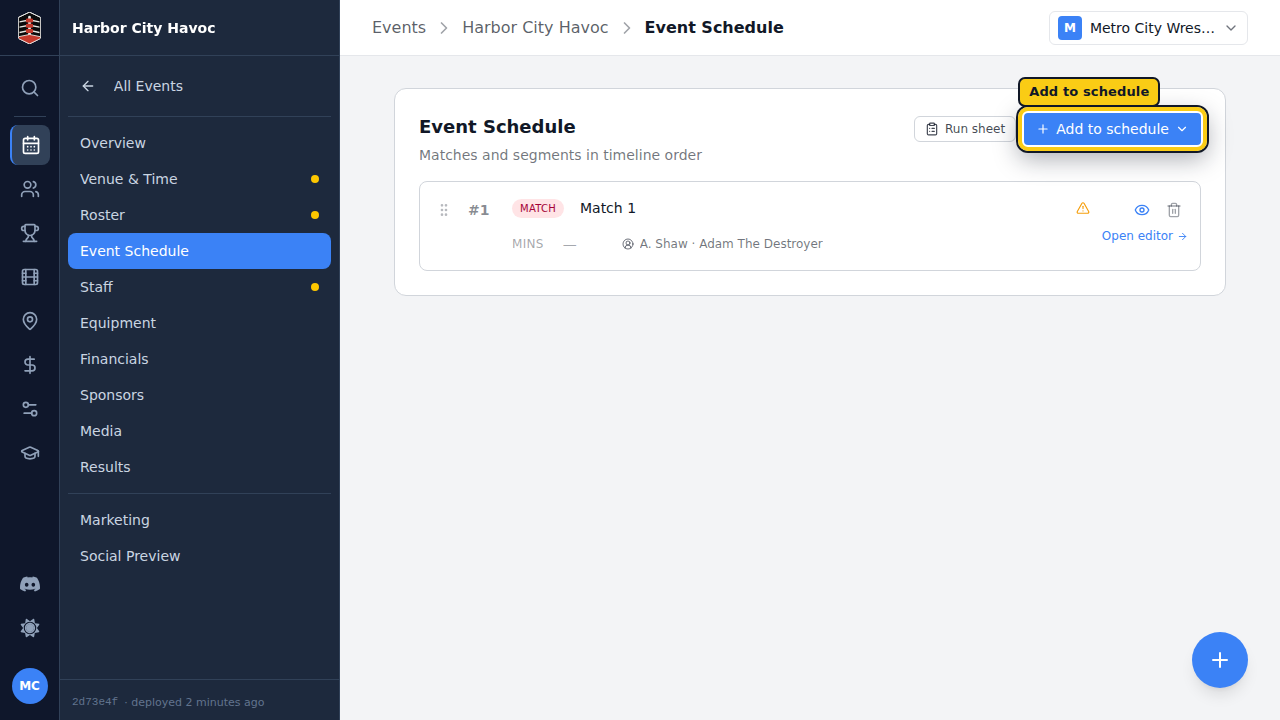
Return to Schedule and the match appears in the running order with both competitors named.
Add a non-match segment
Select Add to schedule again and choose Promo. The segment editor gives you a place to add the segment's details.
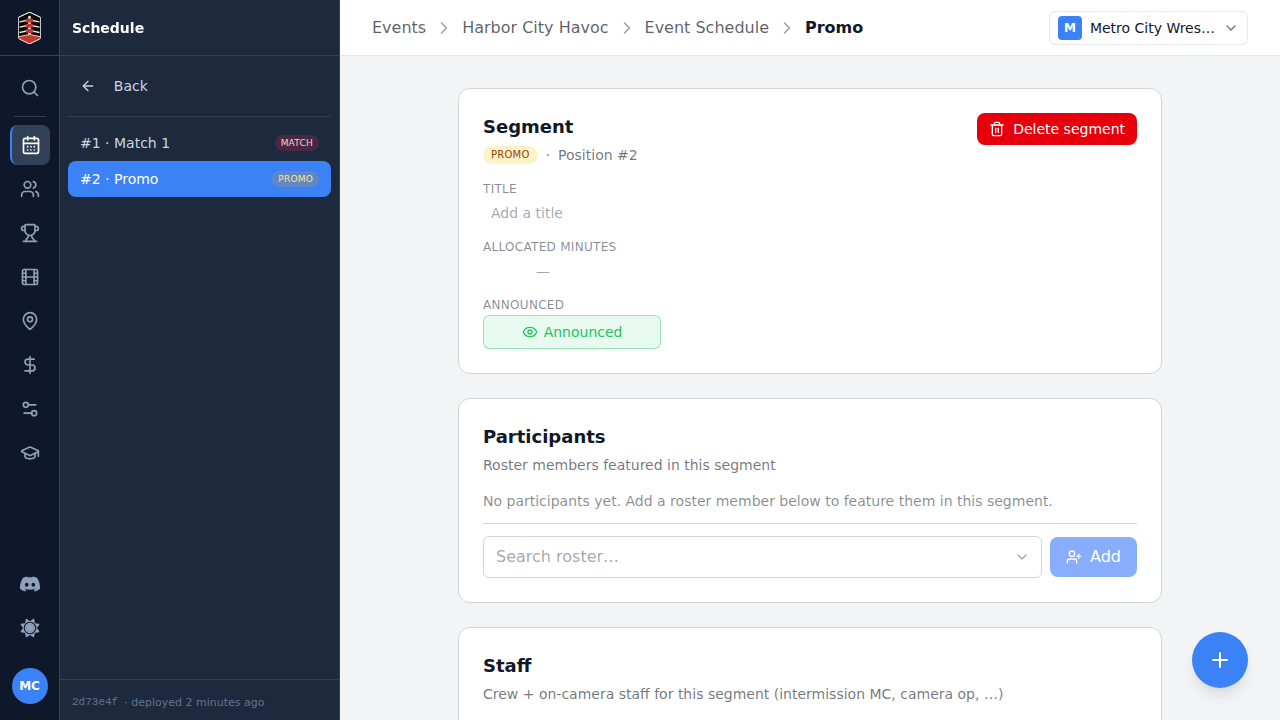
Back on Schedule, the match is first and the promo follows it. Keep using Add to schedule to complete the card in show order.